Tool · free · in your browser
Reduce a 3D mesh's triangles
Lighten heavy meshes (STL, OBJ, 3MF, PLY) by reducing their triangle count while keeping the shape. Drop the file, paint the areas that must not change (threads, fits, logos) if any, choose how much to keep (as a percentage, in MB or in triangles) and download. All in your browser: your file is never uploaded to any server.
Meshes reduced
What you get: the sample knot
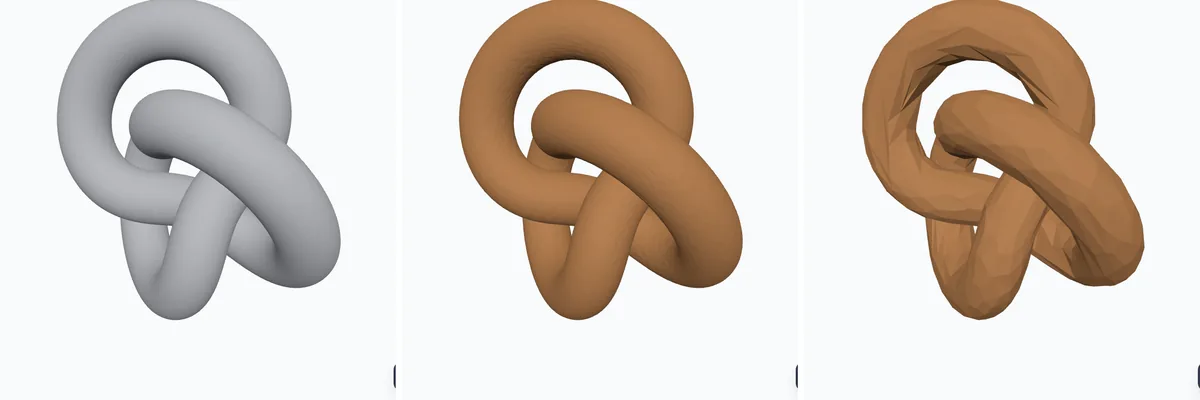
The “try it now with a sample model” link loads a 72 × 75 × 35 mm torus knot with 71,680 triangles (3.6 MB as STL), a deliberately dense mesh, and reduces it to 10%. These screenshots come from the tool with that model:
How far it really moves
After each reduction, the tool measures how far the new part has drifted from the original, in millimetres. With the sample knot, these are the figures it reports at each percentage:
| Keep | Triangles | STL | p95 deviation | Max deviation |
|---|---|---|---|---|
| 100% (original) | 71,680 | 3.6 MB | — | — |
| 50% | 35,840 | 1.8 MB | 0.012 mm | 0.032 mm |
| 25% | 17,920 | 896 kB | 0.029 mm | 0.057 mm |
| 10% | 7,168 | 358 kB | 0.069 mm | 0.126 mm |
| 5% | 3,584 | 179 kB | 0.138 mm | 0.300 mm |
| 2% | 1,432 | 72 kB | 0.362 mm | 0.831 mm |
For scale: a typical FDM layer is 0.2 mm. Down to 10%, the worst point on the knot moves 0.13 mm, less than one layer, while the file drops from 3.6 MB to 358 kB. At 2% the maximum deviation is close to a millimetre and the facets are plain to see. Every mesh is different: a scan with millions of triangles takes far bigger cuts, and a part that was already light deforms sooner. That's why the millimetre figure matters more than the percentage.
Reduce to a file size or a triangle count
Besides the percentage, you can set the target as a file size (MB of STL, at 50 bytes per triangle) or a triangle count, which is what model sites and some programs usually ask for. The tool turns it into the right percentage: with the sample knot, asking for 1 MB leaves 19,998 triangles.
After reducing, the “Changes” view colours the original model by how far the reduced surface moved away from each point: blue where nothing changed and red where it changed most. You can see at a glance whether what got simplified is a flat area that doesn't matter or a detail you care about, and in that case protect it with the brush and reduce again.
What it does to your mesh, under the hood
- It merges repeated vertices. An STL stores every triangle with its three corners separately, so a corner shared by six triangles appears six times. The tool fuses them (within a ten-thousandth of a millimetre) and drops the triangles that become degenerate. Without this step, the simplifier would see every edge as a border and could remove almost nothing.
- It simplifies with quadrics, using meshoptimizer: it collapses edges one by one, starting with those that change the shape least. The borders of open holes don't move, and the vertices you paint with the brush stay locked in their exact position.
- It starts strict. It first tries a very small allowed error (0.5% of the part's size) and only raises it in steps (2, 5, 15 and 40%) if it can't reach the triangle count you asked for. If a step removes barely 12% more, it keeps the previous, cleaner result. That's why you sometimes get a few more triangles than requested: the tool would rather fall short than deform your part.
- It measures the deviation by taking 4,000 points spread over the reduced mesh and finding each one's distance to the original surface. “p95” is the distance that 95% of those points stay within, and the maximum is the worst of them all.
Protecting zones and removing debris
The “Protect zones” brush is for whatever can't move even a tenth of a millimetre: a thread, a lid's snap fit, raised text. The painted area keeps all its triangles and the reduction is spread over the rest, so to reach the same triangle count the rest of the part has to lose more. If you paint a lot, the target may become unreachable and the tool will stay above it.
“Remove loose debris” deletes bits floating apart from the main part, which is common in scans. With painted zones it switches itself off, because it could delete a whole island even if it had protected vertices.
Why an STL gets so heavy, how many triangles are normal and when you shouldn't reduce are covered in the guide your STL is too big: how to reduce it.
What it's for
A 3D scan, an AI-generated model or a high-resolution STL export can have millions of triangles: huge files that hang the slicer and are hard to edit. Reducing the mesh lowers that count while keeping the shape — great for sharing, previewing or working faster; and if the part has threads or fits, protect them with the brush and they won't move a hair. For parts with flat faces, also check the STEP (CAD) converter; and if you're after the lattice look, the voronoi generator.
FAQ
- What does reducing a mesh do?
- It lowers the number of triangles (polygons) in a 3D model while keeping its shape as faithful as possible. The file gets much smaller and easier to handle in slicers, viewers or 3D software.
- Can I protect parts of the model?
- Yes: paint the areas that must not change (a thread, a snap fit, a logo, embossed text) right on the 3D view and the reduction will leave them untouched, vertex by vertex. In Blender this would take vertex groups; here it's a brush.
- Does it lose quality?
- We use quadric decimation (meshoptimizer), which prioritises keeping the silhouette and important detail, and we show you the real measured deviation in millimetres after each reduction. At moderate reductions the difference is minimal; the more you reduce, the more it shows on curved areas.
- Is my file uploaded?
- No. Everything runs in your browser; the file is never sent to any server. There's no size limit either: it only depends on your machine.
- Which formats are supported?
- It reads STL, OBJ, 3MF and PLY, and you can download the result in any of those formats.