Guide · 3D tools
Your STL is too big to print: how to reduce it
You open an STL and the slicer crawls, takes forever to slice, or just freezes. The culprit is almost always the same: too many triangles. The fix isn't to compress the file, it's to reduce the mesh — lower the polygon count while keeping the shape. And it's free, in the browser, in seconds.
“Big” almost never means size: it's triangles
An STL stores the part's surface as a mesh of triangles. A 3D scan, an AI-generated model or a max-resolution export can have hundreds of thousands or millions of them. That level of detail doesn't reach the print (the nozzle can't reproduce it), but it does bloat the file to tens of megabytes and makes any slicer, viewer or editor sweat. Zipping it doesn't help: on opening, the slicer sees the same millions of triangles again.
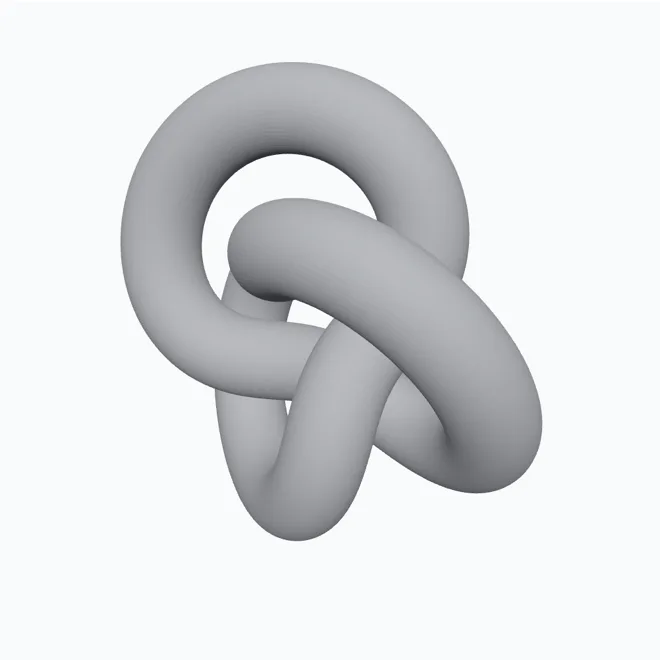 →
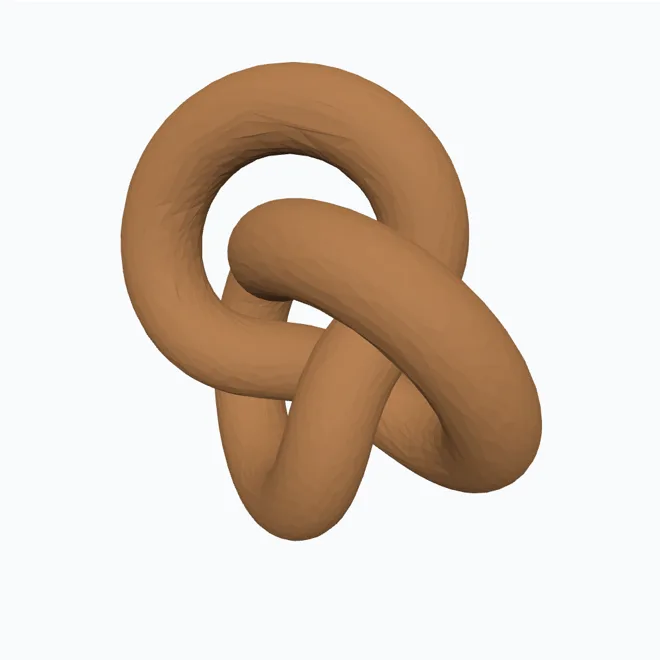
→ 
First: “too big” by weight, or too big to fit?
Two very different problems share the same words, and the fix has nothing in common:
- The file is heavy (megabytes, a sluggish slicer): that's triangles, and this guide is for you.
- The part doesn't fit on the bed (a 30 cm model on a 22 cm plate): reducing triangles changes nothing — the part is exactly the same size. What you need is to cut it into pieces that fit, ideally with alignment pins so it glues back straight.
Before reducing anything: check if your STL is ASCII
There are two flavours of STL. Binary stores each triangle in 50 bytes; ASCII writes it out as text, and the same model ends up roughly four to five times heavier with not one extra triangle in it. Plenty of "huge" STLs are simply ASCII exports.
To tell them apart, open the file in any text editor: if you can read words like solid, facet normal and vertex, it's ASCII. Re-saving it as binary — our converter always writes binary — cuts the size massively with zero loss of geometry. Do this first: it's free precision, and only then consider dropping triangles.
How many triangles is normal?
| Where it came from | Typical triangles | Worth reducing? |
|---|---|---|
| CAD part, sensible export | 5.000 – 50.000 | No — and it may break fits |
| CAD exported at max resolution | 200.000 – 1M | Better to re-export from CAD |
| Sculpted figure / miniature | 100.000 – 2M | Yes, gently |
| 3D scan | 500.000 – 10M | Yes, aggressively |
| Voronoi or generated lattice | 200.000 – 3M | Yes |
Our reducer shows the count the moment you drop the file in, so you don't have to guess which row you're on.
How to reduce it, step by step
With hotend's mesh reducer:
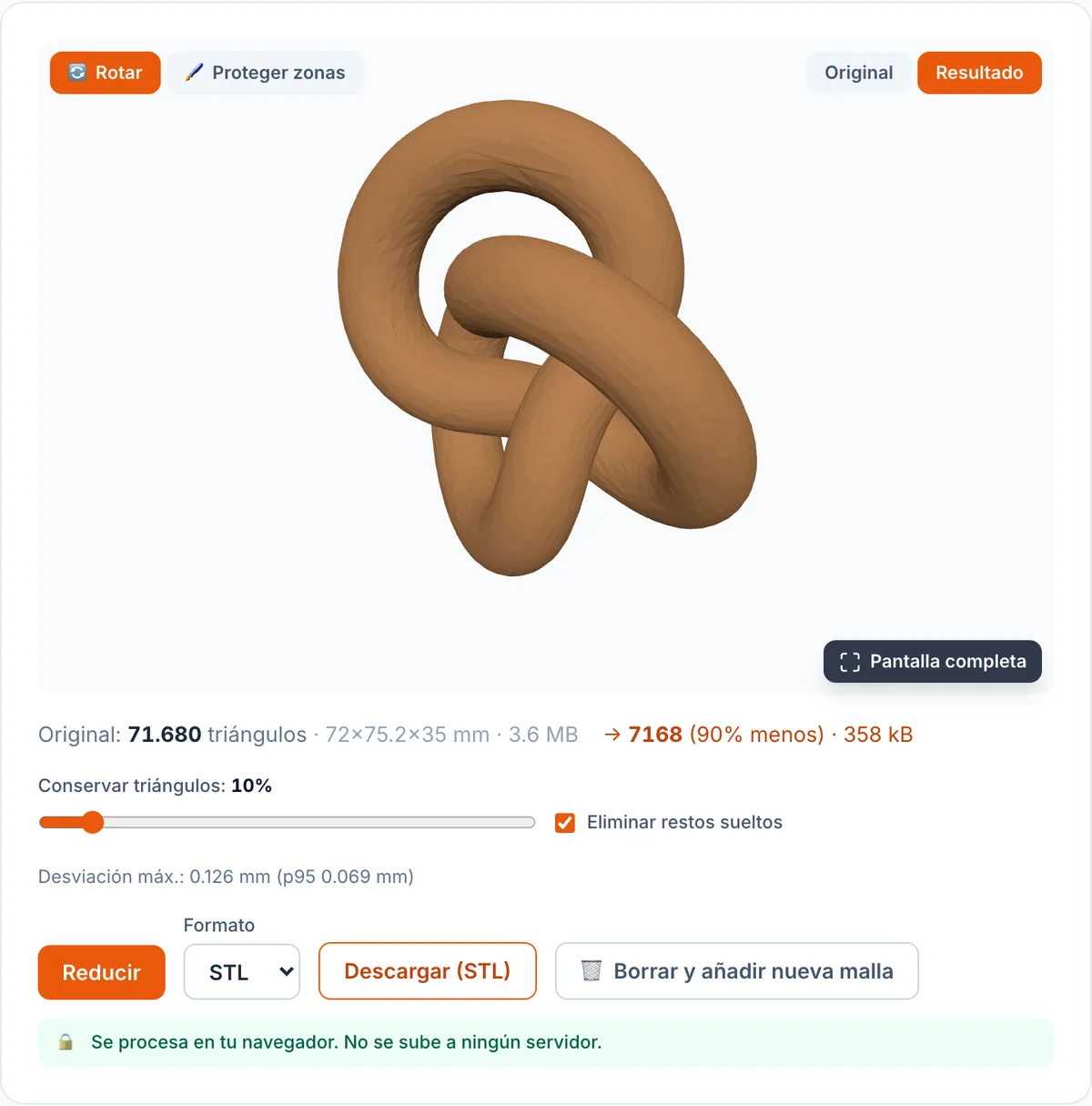
- Drag your STL (OBJ, 3MF or PLY work too) into the reducer.
- Choose how much to keep. Start at a moderate value and push the reduction while the preview still looks good.
- If the part has threads, fits or text that can't change, paint them to protect them.
- Download the lighter STL. We show the deviation in millimetres so you know exactly how far it moved from the original.
How much can you reduce before it shows?
It depends on the part, but on very dense meshes it's common to drop 80-90% of the triangles with no visible difference: a 262,000-triangle, 13 MB figure can end up at 8,000 and under half a megabyte while keeping the silhouette. On very curved, organic surfaces be more conservative and lean on the measured deviation. Rule of thumb: reduce until the preview starts losing detail, then step back one notch.
When NOT to reduce
- CAD parts with flat faces and precise holes: reducing can facet cylinders and ruin fits. If it came from CAD, go back to the original file or use the STEP converter to take it into CAD as a solid.
- When the detail IS the part: on a fine miniature, reducing aggressively eats exactly what you want to print. Reduce lightly and watch the deviation in millimetres.
- If you just need to email it: sometimes zipping is enough to send it; but remember that on opening, the slicer still sees every triangle.
A tip: reduce right after a scan or a voronoi
The two things that most blow up the triangle count are 3D scans and lattices. If you generate a part with the voronoi generator and it comes out heavy, or you've just scanned an object, reduce it right there: you keep the look and get back a file the slicer handles without breaking a sweat. Protect the critical areas with the brush first, and threads and fits won't move.
And if the problem is something else
Reducing is for lightening without changing the shape. If you want to convert between formats (or go to CAD), use the 3D converter; if you want to turn a solid part into a lightweight lattice, the voronoi generator; and if you want to make something new from a photo, the lithophane generator.
Frequently asked questions
- Why is my STL so big?
- Almost always too many triangles: 3D scans, AI-generated models or max-resolution exports produce meshes of hundreds of thousands or millions of polygons. That detail doesn't show when printing, but it bloats the file and slows down any program.
- Does reducing the mesh ruin the part?
- At moderate reductions you won't notice: the silhouette and important detail are preserved. The more aggressive you go, the more curved areas smooth out. That's why we show the real deviation in millimetres after each reduction, so you decide with data.
- Can I protect threads or fits?
- Yes. Paint them on the 3D view and that area stays untouched, vertex by vertex, while the rest reduces. It's key for technical parts where a thread or a fit can't move.
- Is my file uploaded to a server?
- No. Everything happens in your browser; the file is never sent anywhere. There's no upload size limit either: it only depends on your machine's memory.
- What's the difference between reducing and compressing?
- Compressing (say, to ZIP) doesn't change the mesh and your slicer still sees the same millions of triangles. Reducing actually lowers the triangle count, so the file is lighter AND snappier to handle in the slicer.