Guide · 3D tools
How to 3D print a Wi-Fi QR code for your guests
"What's the Wi-Fi password?" is the question you hear most when people visit. A printed QR code by the router or at the entrance answers it for good: your guests scan it with their phone and connect without typing anything. With the 3D text generator you make it for free in a minute, and since everything is computed in your browser, the password never leaves your device.
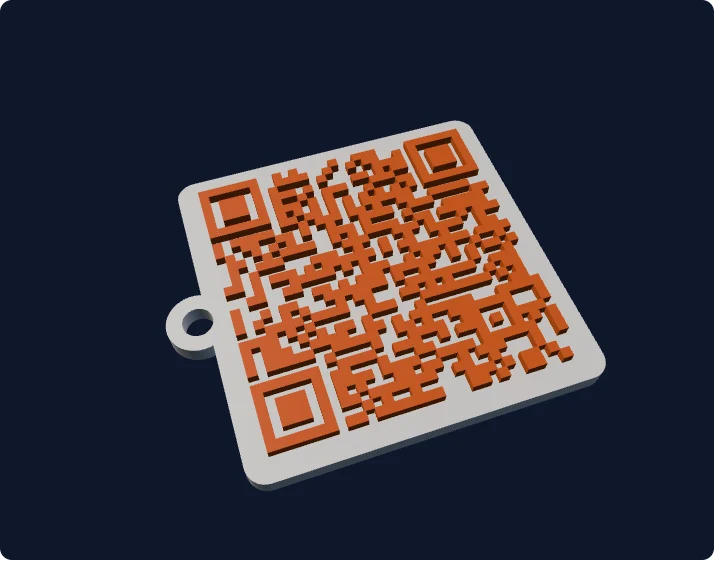
What a Wi-Fi QR code holds
A Wi-Fi QR code is just text in a format readers recognise. It's the one documented, for example, by the ZXing barcode-reading library:
WIFI:T:WPA;S:network-name;P:password;;
T is the security type (WPA on almost every current router), S the network name and P the password. When scanned, the phone understands it's a network and offers to join it. Android uses it out of the box: from the Wi-Fi settings you can share your network as a QR code, and the other device joins by scanning it.
The tool builds that text and turns it into a QR code with error correction level M, which according to Denso Wave (the company that invented the QR code) can recover about 15% of the data and is the most used level. We checked the output with an example network: the code the tool produces decodes exactly as WIFI:T:WPA;S:CasaInvitados;P:ejemplo-1234;;.
Step by step
- Open the 3D text generator and choose QR mode.
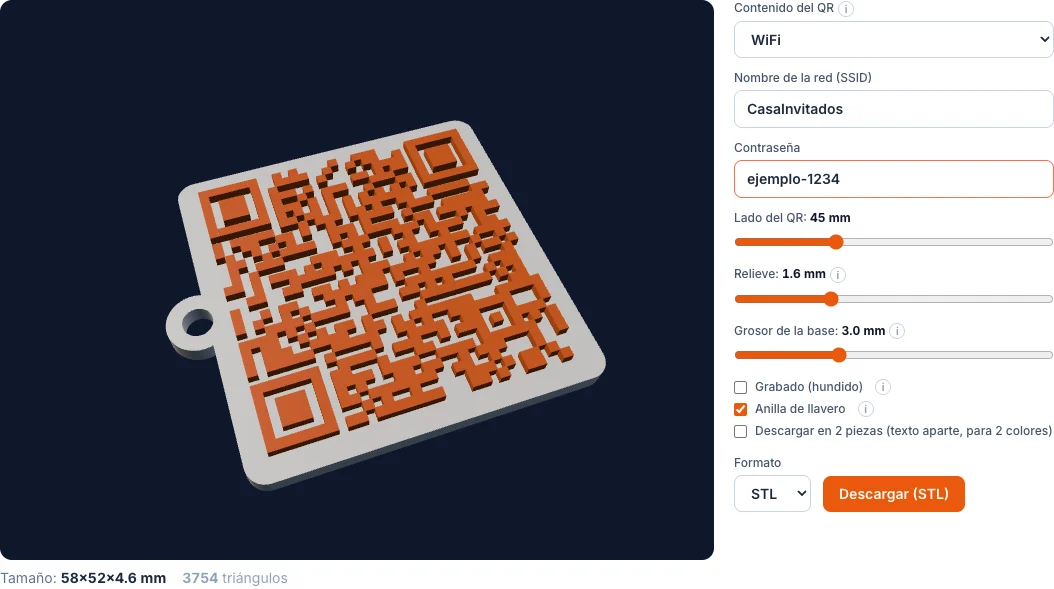
- Under "QR content" select WiFi and type the network name (SSID) and password exactly as they are on the router (capitals included).
- Keep the QR side at 45 mm or raise it if it'll hang far away. Tick "Keyring loop" for a keychain; without it, you get a plate to stick on or stand up.
- Download the STL. If you'll print the two colours with an AMS, tick "Two colours (letters apart)" and pick 3MF: base and code arrive in a single file, as two parts already in place.
What size? Counting the squares
A QR code is made of modules: the black and white squares. The longer the text, the more modules it needs, and each one gets smaller if you keep the size. With our example network (43 characters in total), the code has 33 × 33 modules: at 45 mm each one measures 1.36 mm; at 30 mm, 0.91 mm. A network with a long name and password (73 characters) goes up to 37 × 37 modules, 1.22 mm each at 45 mm.
The tool warns you if modules drop below 0.8 mm, the point where they start to print badly. At the default size, a normal network will hardly get there.
Contrast is what makes it readable
A QR reader tells dark modules from light ones. A code printed in a single colour, with relief as the only difference, depends on light and shadow and can be hard to read. The reliable way is to print the base in a light colour and the code in a dark one (or the other way round). Two ways to do it:
- Without an AMS: print the base in white and pause at the first layer of the code to switch to black. We explain it in multicolour 3D printing without an AMS.
- With an AMS or similar: download the two parts and assign a filament to each in your slicer.
Before hanging it, scan it with your phone and someone else's at home: if it connects, it's ready.
Where to put it (and a warning)
Anyone who scans the code — or photographs it — has your password. Put it where only your guests can reach, not in a window facing the street. If your router lets you create a separate guest network, it's a good idea to use that one in the QR.
Frequently asked questions
- Is my password sent anywhere?
- No. The QR code and the 3D model are generated in your browser, on your own device: the network name and password aren't uploaded to any server.
- Does it work on iPhone and Android?
- Yes. Android lets you share a network as a QR code and join it by scanning with another device, and the iPhone camera reads QR codes. The tool uses the standard format readers recognise.
- What size should I print it?
- The default 45 mm is plenty for a network with a normal name and password. The tool warns you if each little square of the code drops below 0.8 mm, which is when it starts to print badly.
- What if I change my Wi-Fi password?
- You'll need to generate and print a new code: the password is written inside the QR and doesn't update itself.
Sources
- ZXing — Barcode Contents (
WIFI:format) - Denso Wave (QRcode.com) — Error correction feature
- Android Help — Connect to Wi‑Fi networks (sharing a network with a QR code)
- Apple Support — Scan a QR code with your iPhone camera
- hotend 3D text generator