Guide · 3D tools
Convert 3D files online without uploading them anywhere
You download a MakerWorld model as 3MF and your trusty Cura won't open it. Someone sends you a scan as PLY. You want to tweak a part in Blender and it wants OBJ. The fix is always the same: convert the file to another format. And you don't need to install anything or upload your model to someone else's website: with hotend's 3D converter the conversion happens inside your browser, free and in seconds.
When you actually need to convert a 3D file
- Your slicer won't swallow the format. The classic: a 3MF saved from Bambu Studio or Orca that Cura or another older program refuses to open. Converted from 3MF to STL, every slicer opens it.
- You're going to edit the mesh. Blender, ZBrush and most design software are happiest with OBJ.
- You're coming from a 3D scan. Many scanners and photogrammetry apps export PLY; to print it you'll usually want STL or 3MF.
- You want to take a mesh into CAD. FreeCAD, Fusion 360 and SolidWorks prefer solids: the STEP output turns your mesh into a faceted solid they open as one.
- You're publishing or sharing in the modern ecosystem. 3MF is today's container (Bambu Studio, Orca, MakerWorld) and, being compressed, weighs less than the equivalent STL.
Which formats go in, and which come out
The exact formats the converter supports:
| Format | What it is | Input | Output |
|---|---|---|---|
| STL | The universal 3D-printing mesh; geometry only, read by every slicer. | Yes | Yes |
| OBJ | A mesh format widely supported by 3D and design software (Blender, ZBrush). | Yes | Yes |
| 3MF | The modern format (Bambu Studio, Orca, MakerWorld); can store colour and settings. | Yes | Yes |
| PLY | Common in 3D scanning and point clouds. | Yes | Yes |
| STEP | A CAD solid (B-Rep) that opens in FreeCAD, Fusion 360 or SolidWorks. | No | Output only |
Note the last row: STEP is output-only. Reading a STEP file needs a CAD kernel that doesn't fit in a browser, so STEP → STL isn't possible here; for that, open the STEP in FreeCAD and export the mesh from there. The reverse trip — mesh → STEP — works, and it's one of the most useful things the tool does.
How to convert, step by step
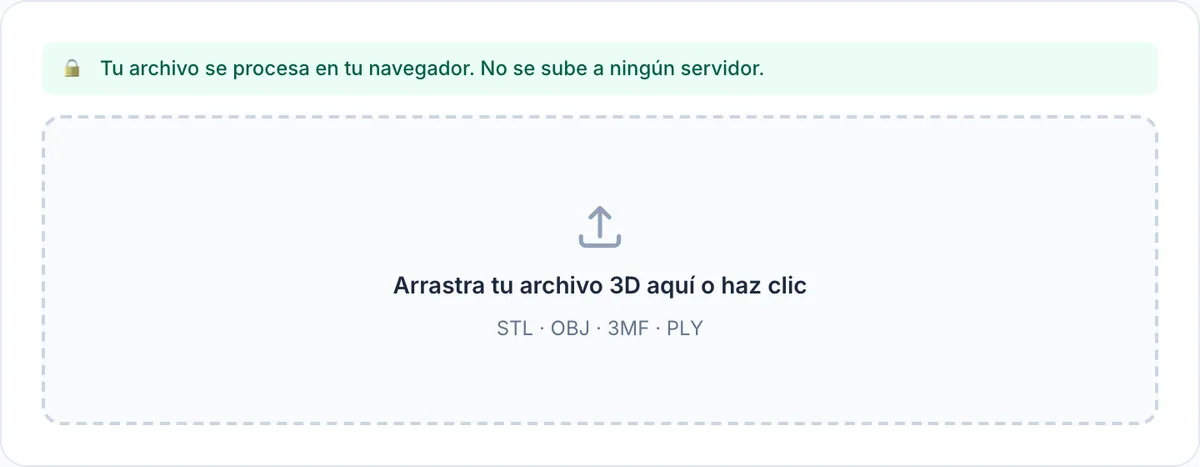
- Drag your STL, OBJ, 3MF or PLY into the converter (or click and pick it).
- Check the 3D preview: you can rotate the model and see its dimensions in millimetres and its triangle count. If the file was exported in inches or metres, you'll catch it here because the numbers will look absurd.
- Pick the target format from the dropdown.
- Hit "Convert & download". The converted file downloads instantly with the same name and the new extension.
What's kept and what's lost
It's a geometry conversion: the mesh — vertices and triangles — is preserved exactly, and the scale doesn't change (what goes in in millimetres comes out in millimetres). What gets dropped is everything the target format can't or shouldn't hold:
- Colour and materials: a multicolour 3MF converted to STL keeps only the shape, because STL stores nothing but geometry.
- Slicer settings and supports: if the 3MF came from Bambu Studio or Orca with profiles and painted supports, none of that travels to the new format.
- Object structure: exporting to 3MF produces a single clean object in millimetres, valid in any modern program.
Two practical details: the STL you download is binary (far more compact than a text STL), and if your problem isn't the format but the weight, you don't want conversion — you want mesh reduction. We cover that in how to reduce an STL that's too big.
The special case: exporting to STEP
The STEP output produces a faceted solid (B-Rep) that FreeCAD, Fusion 360 or SolidWorks open as a real solid: flat faces are merged into a single face, and curved areas stay faceted. It's not a parametric or NURBS model — nothing can rebuild that from a mesh automatically — but it lets you run CAD operations on a part you only had as a mesh. One heads-up: with meshes over 1,000,000 triangles the browser can run out of memory, so the tool will ask you to run it through the mesh reducer first.
Why it matters that nothing gets uploaded
Most online converters work the other way round: you upload your file to their server, wait in the queue and download the result. Here the file never leaves your browser; the conversion runs on your own machine. That has three very concrete consequences:
- Real privacy: client parts, prototypes under NDA or a scan of your own face don't end up on a stranger's server. There's nothing to delete because nothing was sent.
- No queues, no server limits: you don't depend on anyone's maximum upload size; the only limit is your computer's memory.
- Speed: with no 80 MB upload crawling through your connection, the conversion takes as long as your machine needs — usually seconds.
It's the same philosophy behind every hotend tool, from the voronoi generator to the lithophane generator: everything runs locally, free, no sign-up.
Frequently asked questions
- Which formats can I convert?
- Input: STL, OBJ, 3MF and PLY. Output: those four plus STEP, which is output-only — it turns your mesh into a faceted solid that opens in FreeCAD, Fusion 360 or SolidWorks.
- Is my file uploaded to a server?
- No. The file is processed entirely in your browser and never sent anywhere. That's why there are no queues or server limits: it only depends on your machine's memory.
- Does converting lose quality?
- Not in the geometry: the mesh (vertices and triangles) is preserved exactly and the dimensions don't change. What gets dropped is whatever the target format can't hold: colour, materials and slicer settings.
- Can I convert STEP to STL?
- No: STEP is output-only, because reading it isn't possible in the browser. To go from STEP to a mesh, open it in a free CAD program like FreeCAD and export an STL from there.
- Is there a file size limit?
- There's no upload limit because there's no upload: it depends on your computer's memory. The one exception is exporting meshes over a million triangles to STEP; the tool asks you to reduce them first so the browser doesn't run out of memory.